
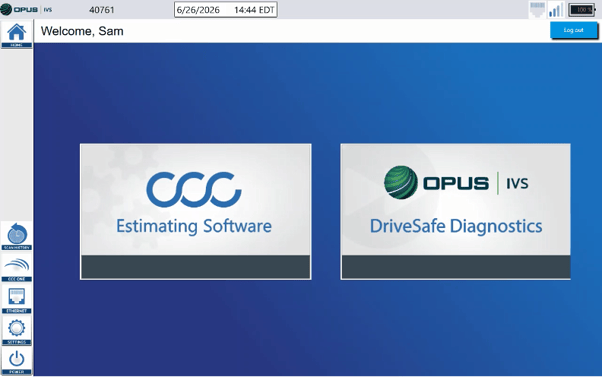
Step 1: Start a scan. From the home screen, select DriveSafe Diagnostics.
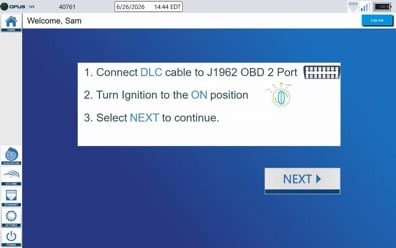
Step 2: Connect to the vehicle. Plug in and make sure the vehicle is key on, engine off.
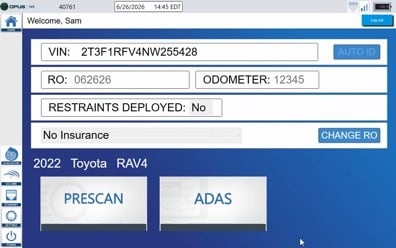
Step 3: Enter vehicle information and select Pre Scan. The pre-scan documents the job for reimbursement and surfaces what needs attention so you add the right line items to your estimate.
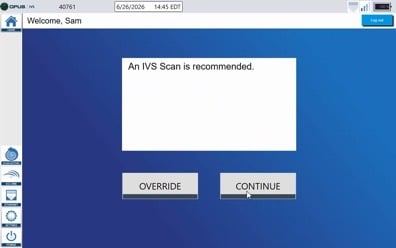
Step 4: Follow the wizard's recommendation. The wizard recommends either an IVS Scan or an OE Scan for the vehicle. You can override the recommendation if needed.
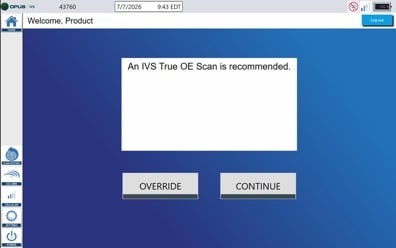
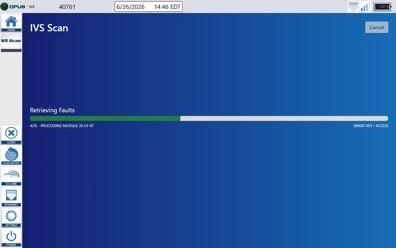
Step 5a: If an IVS Scan is selected. The scan runs automatically on the device.
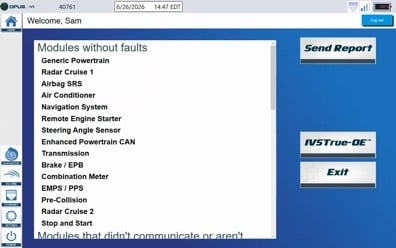
When the scan completes, tap Send Report. The scan report is sent to CCC and your Autologic Portal.
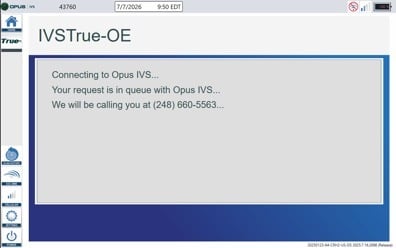
Step 5b: If an OE Scan is selected. The scan is submitted to the Remote Services queue and an Opus technician will call you within a couple of minutes.
New: If the vehicle is a supported GM or Toyota, the OE scan now completes on the device in a couple of minutes, without needing to receive a call.
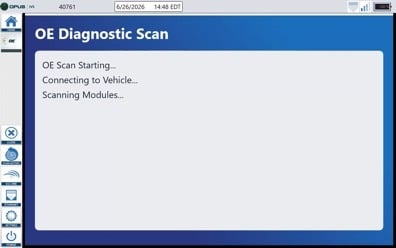
The completed scan is placed into CCC and your Autologic Portal automatically. The technician will let you know when it is okay to disconnect the vehicle.
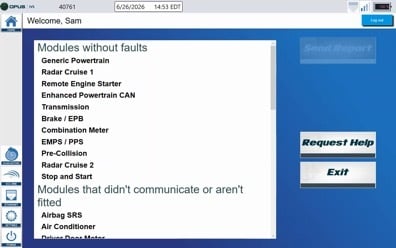
Step 6: Complete a Post Scan After Repairs. Once repairs are complete, return to the device, pull up the vehicle, and select Postscan. The wizard will make a recommendation, and you can run an IVS Scan or an OE Scan just as in Step 5. The post-scan confirms the vehicle is back to pre-collision spec and documents it before delivery.
.png?width=595&height=372&name=image%20(7).png)
Step 7: View and Download Your Reports. Every scan report is available anytime in your Autologic Portal. Visit the portal here to view and download reports as needed.
.png?width=593&height=283&name=image%20(8).png)
Questions about your scan workflow? Contact our support team and we will be happy to help.
*On-device OE scanning is currently available for GM (all GDS2-supported vehicles, limited Tech2Win) and Toyota (all supported model years and vehicle lines). If your device has not yet received the update, restart it.