Once you have generated a report, you can share it directly from the portal.
How to Email a Report
- Open the specific transaction/file in ADAS Map.
- Click the View button to see the details.
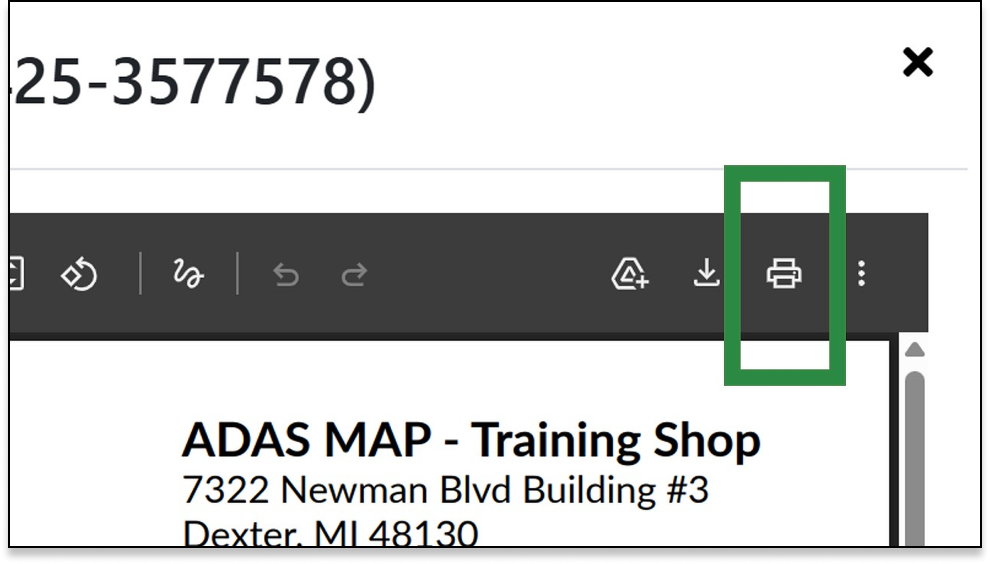
- Click the Email Report button located the bottom left corner.
- This will email the report to the ADAS Map users in your organization who are designated to receive reports.
How to Print or Save as PDF
- Open the report by clicking the Report button.
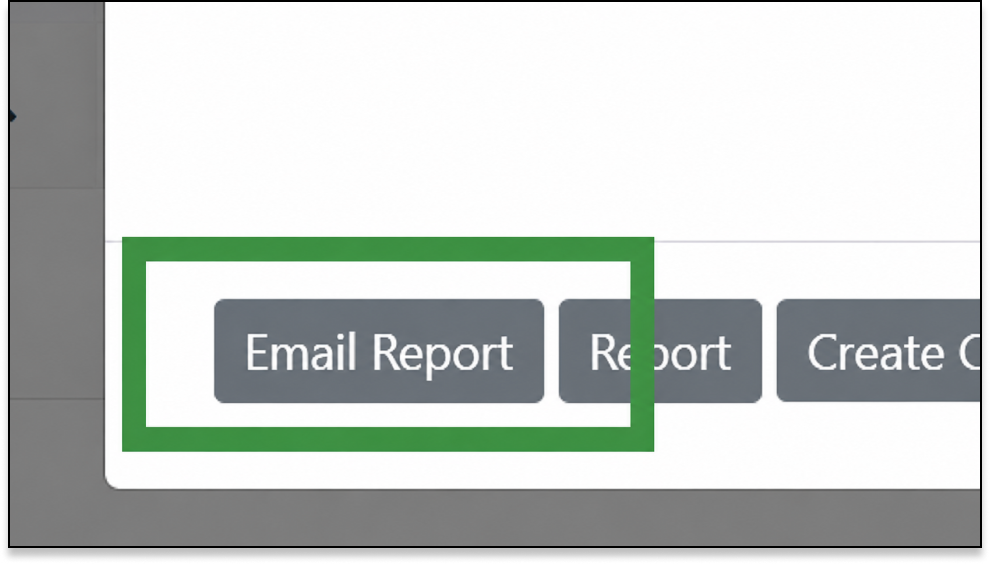
- Look for the Print Icon (shown below) at the top of the menu.
- From the print dialog box, you can send it to a physical printer or select "Save as PDF" to store a digital copy.